> For the complete documentation index, see [llms.txt](https://ajuda.consistem.com.br/llms.txt). Markdown versions of documentation pages are available by appending `.md` to page URLs; this page is available as [Markdown](https://ajuda.consistem.com.br/tecnologia/erp/componentes/funcionalidades/camada-de-personalizacao/personalizacao-de-janelas.md).
# Personalização de Janelas de Confirmação
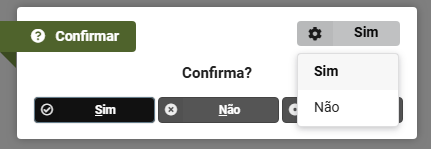
Esta funcionalidade permite definir qual opção (**Sim** ou **Não**) virá pré-selecionada nas janelas de confirmação do sistema (rotina `SN^%CSUTIUD`).
O objetivo principal é agilizar a operação em processos repetitivos. Ao definir uma resposta padrão, o usuário reduz a necessidade de alternar entre opções ou utilizar o mouse, tornando o fluxo de trabalho mais rápido.
A liberação deste recurso é feita no programa [Configuração de Permissão de Perfil e Usuário (CSWMEN070)](https://ajuda.consistem.com.br/modulos/componentes/manuais-de-telas/configuracao-dos-componentes/configuracao-de-permissao-de-perfil-e-usuario.md).
Para ativar, localize a coluna **Configuração** e marque o checkbox:
* *Permitir Personalizar Resposta Padrão do Componente de Confirmação (SN)*
{% hint style="warning" %} **Importante**\
\
Ao habilitar este recurso, ele terá prioridade total. Isso significa que ele **irá sobrepor** quaisquer predefinições de respostas padrão que já existiam anteriormente para aquele usuário.
{% endhint %}
#### Exemplo Prático
**Cenário**: Um usuário realiza a conferência de centenas de itens por dia e, a cada item, o sistema pergunta: "Confirma a gravação?".
**Ação**: O usuário define a resposta padrão como "**Sim**".
**Resultado**: A janela de confirmação já abre com o botão "Sim" focado. O usuário precisa apenas teclar Enter para prosseguir, eliminando um movimento de mouse ou teclado a cada registro.
---
# Agent Instructions
This documentation is published with GitBook. GitBook is the documentation platform designed so that both humans and AI agents can read, navigate, and reason over technical content effectively. Learn more at gitbook.com.
## Querying This Documentation
If you need additional information that is not directly available in this page, you can query the documentation by asking a question.
Perform an HTTP GET request on the following URL with the `ask` and `goal` query parameters:
```
GET https://ajuda.consistem.com.br/tecnologia/erp/componentes/funcionalidades/camada-de-personalizacao/personalizacao-de-janelas.md?ask=&goal=
```
`ask` is the immediate question: it should be specific, self-contained, and written in natural language.
`goal` is what the user is ultimately trying to achieve, the reason they need the answer. Sharing it helps GitBook give you a better, more relevant answer. A goal is most helpful when it describes the outcome the user wants rather than restating the question. For example, with `ask=how do I create an API token`, a goal like `automate deployments from our CI pipeline` lets GitBook tailor the answer to that use case.
The response will contain a direct answer to the question and relevant excerpts and sources from the documentation.
Use this mechanism when the answer is not explicitly present in the current page, you need clarification or additional context, or you want to retrieve related documentation sections.